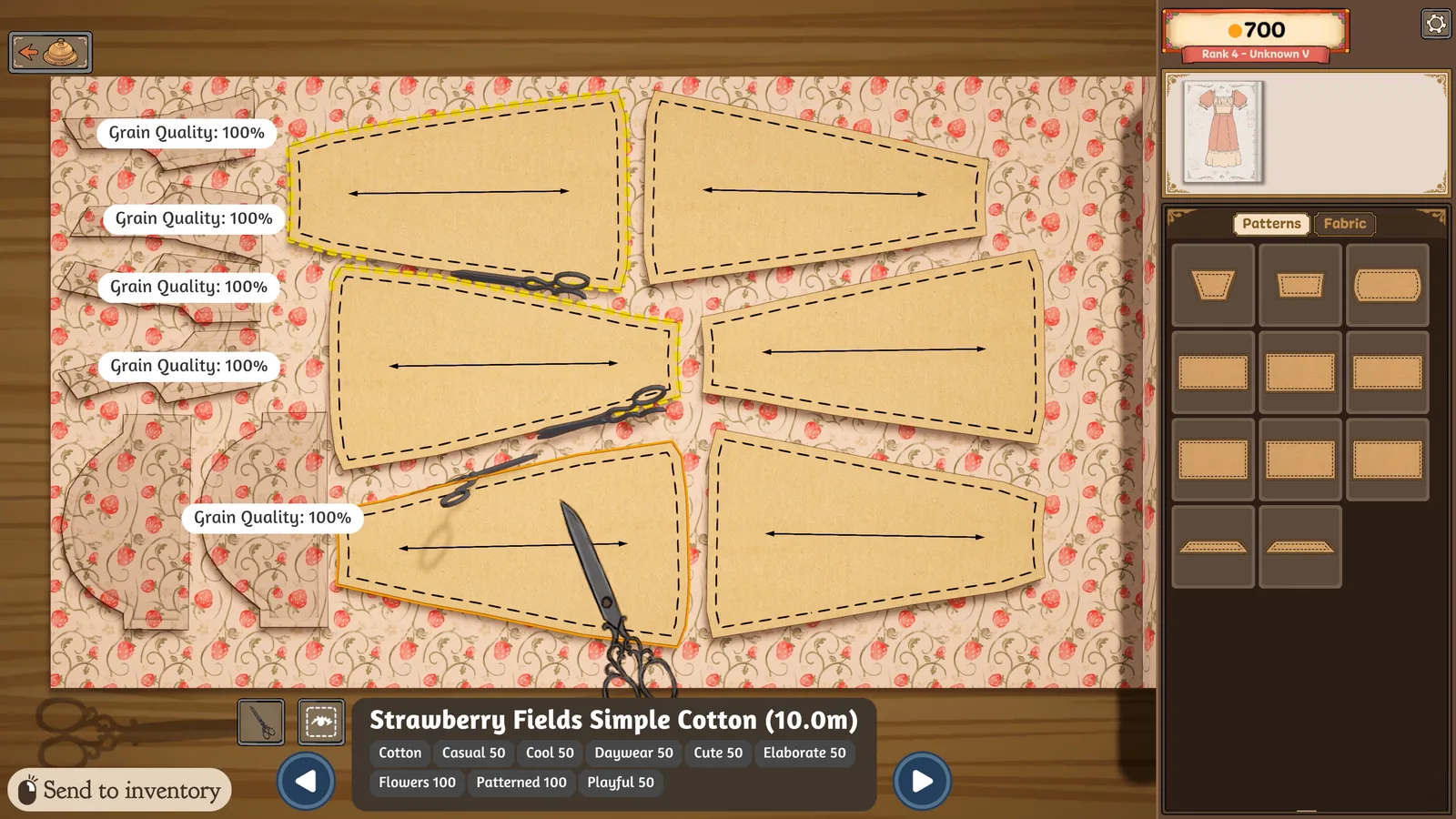
Build 443: Collect Pieces Without Discarding Fabric
To throw fabric away, use the discard fabric button first. A separate new button collects all panel pieces. These do different jobs: check which action is active before clicking the scissors.[1]
If you need more working room, the patch adds drag-panning and wheel-panning while scissors are selected. Use the bottom scene hints and panel preview to identify a piece before moving or cutting it.[1]
The developer reports a fix preventing exit during the scissor animation. The stuck-scissors warning below is retained for the prototype; if the symptom recurs in the current Steam build, record the exact sequence rather than assuming the old restart advice is a verified patch-specific remedy.[1]
✂️ What is Grain Line Alignment?
Real-World Context
In real dressmaking, fabric is woven with threads running in two directions: warp threads (parallel to the selvage edge, running lengthwise) and weft threads (perpendicular to the selvage, running crosswise). The warp threads are stronger and provide structure, while weft threads provide width.
When pattern pieces are aligned with the grain (arrows pointing along the warp direction), garments hang properly on the body, maintain their shape, and have appropriate strength where needed. Cutting "off-grain" can cause garments to twist, sag, or stretch improperly.
How Dressmaker Simulates This
Dressmaker includes a grain line mechanic where each pattern piece has arrows indicating the proper alignment direction. The game checks whether these arrows point horizontally (left-right) when placed on fabric, simulating alignment with the lengthwise grain.
💡 Key Rule
Pattern piece arrows must point left ← → right (horizontal). If arrows point up ↑ ↓ (vertical) or diagonal ↗ ↘, the piece is misaligned and your quality score will be capped for that piece.
The Green Outline Indicator
When a pattern piece is correctly aligned to the grain, it displays a green outline. This is your visual confirmation that the piece will not cap your quality score.
- Green outline visible: ✅ Correctly aligned, will not cap quality
- No green outline: ❌ Misaligned, quality score will be capped for this piece
📐 Step-by-Step Cutting Process
Step 1: Access the Cutting Room
After designing your dress in the sketchbook and purchasing fabric from the shop, you'll enter the cutting room. Your pattern pieces appear in an inventory panel, and fabric bolts are laid out on the cutting table.
Note (v0.5+): A sketchbook preview is visible on the side of the cutting table, allowing you to reference your design while cutting.
Step 2: Drag Pattern Piece to Fabric
- 1. Select a pattern piece from your inventory (e.g., bodice front, skirt panel, sleeve)
- 2. Drag it onto a fabric bolt
- 3. The piece will appear on the fabric, showing its outline and grain line arrows
Steam Build 410: identify first, rotate on the cutting table
Hover over an inventory panel to reveal its mannequin location. If you are unsure which fabric belongs on it, use the panel hint check before cutting.
Build 410 stops the mouse wheel rotating cutting-room panels while the pointer is over the inventory. If scrolling there no longer turns your piece, move the pointer back to the cutting area before trying rotation. Check the visible grain feedback before cutting.
This input-focus change is documented in the official Build 410 notes ↗; it is separate from the older prototype rotation notes below.
Step 3: Rotate to Align Grain Line
This is the critical step where most quality failures occur.
How to Rotate Pattern Pieces:
【Note】: The exact rotation controls are not officially documented. Based on player reports, rotation appears to work by clicking and dragging the piece to turn it. Some players report using mouse scroll. Experiment with these methods.
- Method 1 (Most Common): Click and drag the pattern piece to rotate it
- Method 2 (Reported): Use mouse scroll wheel while hovering over the piece
- Goal: Rotate until the arrows on the pattern point left → or ← right
Step 4: Verify Green Outline
✅ Alignment Checklist
- Arrows on pattern point left-right (horizontal direction)
- Green outline visible around the entire piece
- Piece is positioned on the fabric (not hanging off edges)
Critical: If no green outline appears, do NOT proceed to cutting. Rotate the piece until green outline is visible.
Step 5: Cut the Fabric
Once properly aligned and positioned:
- Click with scissors tool to initiate cutting
- A cutting animation will play as the piece is cut out
- Important: Wait for the cutting animation to complete before switching screens
- The cut piece will move to your "cut pieces" inventory
⚠️ Legacy Prototype Bug Alert
In Prototype 0.5.5, leaving mid-cut was reported to leave moving scissors and an unusable piece. Build 443 reports a fix preventing exit during the animation. Wait for cutting to complete and report any current-build recurrence.
🎯 Efficient Pattern Placement Strategies
While grain line alignment is mandatory for quality, efficient placement helps you save fabric and stay within budget. Here are strategies from experienced players:
Pattern Tetris: Minimizing Waste
-
1. Arrange Largest Pieces First
- Bodice and skirt panels typically use the most fabric
- Place these first to establish your layout
- Maintain grain alignment (arrows horizontal) while positioning
-
2. Fit Smaller Pieces Around Them
- Sleeves, collars, and trim pieces can fill gaps
- Position pieces as close together as possible—no spacing required between them
- 【Reported】Some players mention being able to slightly overlap pieces before cutting completes (may be unintended)
-
3. Use Different Fabrics Strategically
- If budget is tight, use expensive/tagged fabric for most visible pieces (bodice, skirt)
- Use cheaper fabric for less visible pieces (lining, facings)
- You can cut different pieces from different fabrics
Budget Management Tips
✅ Do This
- Estimate total fabric needed before buying with the Fabric Budget Guide
- Arrange all pieces on fabric before cutting any
- Use leftover fabric from previous dresses
- Cut carefully to avoid wasted expensive fabric
❌ Avoid This
- Cutting pieces before arranging all of them
- Overspending on first fabric purchases
- Ignoring grain alignment to "save fabric"
- 【Note】No undo system—mistakes cost money
Can You Recut Pieces?
Yes, with limitations:
- You can drag cut pieces back to your inventory
- This allows you to recut them from different fabric
- However: The fabric from the original cut is wasted—you don't get it back
- This is useful if you realize mid-assembly that colors don't match or grain was wrong
❌ Common Mistakes to Avoid
1. Not Checking for Green Outline on Every Piece
Problem: You carefully align the first few pieces but rush through later pieces and miss the green outline check.
Impact: Even one misaligned piece (e.g., a single sleeve) caps your overall quality score.
Solution: Develop a habit: Rotate → Check for green → Cut. Every single piece, every single time.
2. Confusing "Straight on Fabric" with "Grain Aligned"
Problem: Players place pieces neatly vertical or horizontal on the cutting table but don't check arrow direction.
Why It Happens: The piece might look "straight" but the arrows point the wrong way.
Solution: Ignore how the piece sits on the table. Only check arrow direction. Arrows must point ← → (horizontal).
3. Leaving Cutting Table Mid-Cut
Problem: You click to cut, then immediately switch to sketchbook or fabric shop before animation completes.
Impact: Known bug causes the piece to become stuck—scissors keep moving but don't cut. Piece can't be used.
Solution: Wait for the cutting animation to fully complete (piece moves to inventory) before switching screens.
4. Assuming Accessories Affect Quality
Problem: Thinking "I'll just add extra bows/lace to make up for off-grain cutting."
Reality: Quality score is determined by grain alignment + sewing accuracy. Accessories don't compensate for cutting errors.
Solution: Fix cutting first. Accessories are for style tags, not quality recovery.
5. Not Using Sketchbook Preview (v0.5+)
Problem: Forgetting which color/fabric you planned for each piece.
Solution: In version 0.5.1+, a sketchbook preview appears on the side of the cutting table. Use this to verify your design choices while cutting.
6. Difficulty Identifying Pattern Pieces
Problem: Multiple players report confusion about which pattern piece is which (e.g., "Is this the sleeve or bodice panel?").
Current Status: Pattern pieces use dressmaking terminology which may be unfamiliar to some players.
Workaround: If unsure, refer to the sketchbook preview (v0.5+) and sort pieces by garment family before cutting. See the Pattern Pieces Guide for bodice, sleeve, skirt, collar, left, right, front, and back labels.
🐛 Known Bugs & Workarounds (v0.5.5)
The reports below are archived for Prototype 0.5.5. They are not evidence that the same bugs remain in the released Steam build; try the current UI first, then use the game's official support route if the behavior reproduces.
🐛 Bug: Cutting Animation Glitch
Symptom: If you leave the cutting table (switch to sketchbook, fabric shop, etc.) while a piece is mid-cut, the scissors continue moving but don't actually cut the fabric.
Impact: The pattern piece becomes stuck—it appears to be placed on fabric but can't be used. New pieces collide with it. Only fix is restarting the game.
Workaround: Always wait for cutting animation to complete before switching screens. The piece should move to your "cut pieces" inventory before you navigate away.
⚠️ Issue: Grain Line Arrows Sometimes Incorrect
Symptom: Some players report certain pieces (particularly skirt panels) showing green outline when placed on the bias (diagonal) instead of on-grain.
Status: Intermittent bug in prototype. Developers have acknowledged the issue.
Workaround: Visually verify arrows point horizontal (left-right) regardless of green outline. If in doubt, rotate to ensure arrows are clearly ← →.
⚠️ Issue: Recutting Removes Visual Guides
Symptom: When you drag a cut piece back to inventory to recut it, the grain line guide arrows may not display on the new placement.
Status: Reported by players, not yet confirmed as intentional or bug.
Workaround: Remember the correct orientation from your first cut. Rotate to approximately horizontal and look for green outline to confirm alignment.
💡 Feature Request: Toggle Grain Line Requirement
Player Suggestion: Some players request an option to toggle the grain line quality requirement on/off, to allow more freedom in fabric-saving layouts.
Status: This is a feature request for future versions, not currently available in v0.5.5.
Current Reality: Grain line alignment is mandatory for quality scores in the prototype. No toggle exists.
📝 Version Notes & Release Status
This Guide is Based On:
- Version: Prototype 0.5.5 (released October 3, 2025)
- Platform: itch.io free prototype
- Status: Archived free prototype; the complete game released on Steam on September 21, 2026
Recent Cutting-Related Updates
- 0.5.1 (Sep 23, 2025): Added sketchbook preview to cutting room side panel for easier reference
- Earlier versions: Grain line mechanic introduced as core quality determinant
What the Full Game Officially Confirms
The official store page confirms the full-game cutting sequence and its visible result:
- Arrange and cut pattern pieces on the selected fabric.
- Fabric design direction can be aligned on the grain or on the bias.
- The chosen direction affects how the pattern appears on the finished dress.
- Preview cut pieces on the mannequin before sewing.
🚀 Full Game Available
View the complete game on the official Steam store page. Keep the Prototype 0.5.5 bugs and exact score-cap rules separate from current release behavior unless you reproduce them in the released build.
Sources & verification
[1] Dressmaker team, October 14, 2026: Steam Community — Build 443 notes ↗. Checked October 15. These are developer-reported changes; this site has not tested the patch in game.
📚 Related Guides
Complete beginner's guide from sketch to delivery
Plan how much fabric to buy before cutting
Identify bodice, sleeve, skirt, collar, and side pieces before cutting
Fix missing scissors and cropped cutting-room UI
Get 100% quality with precise stitching techniques